Plan and track work in the Task Manager
Give tasks to your team, track status and due dates, in a sheet, list or calendar.
The Task Manager keeps your team’s SEO work in one place. Each person has their own sheet, and every task can be linked to a website, given a due date and status, and discussed in comments.
-
Open the Task Manager
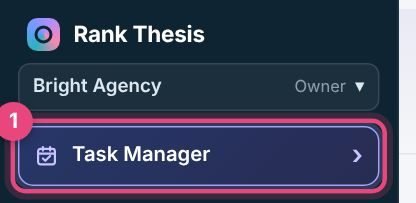
Click Task Manager near the top of the sidebar.
-
Add a task
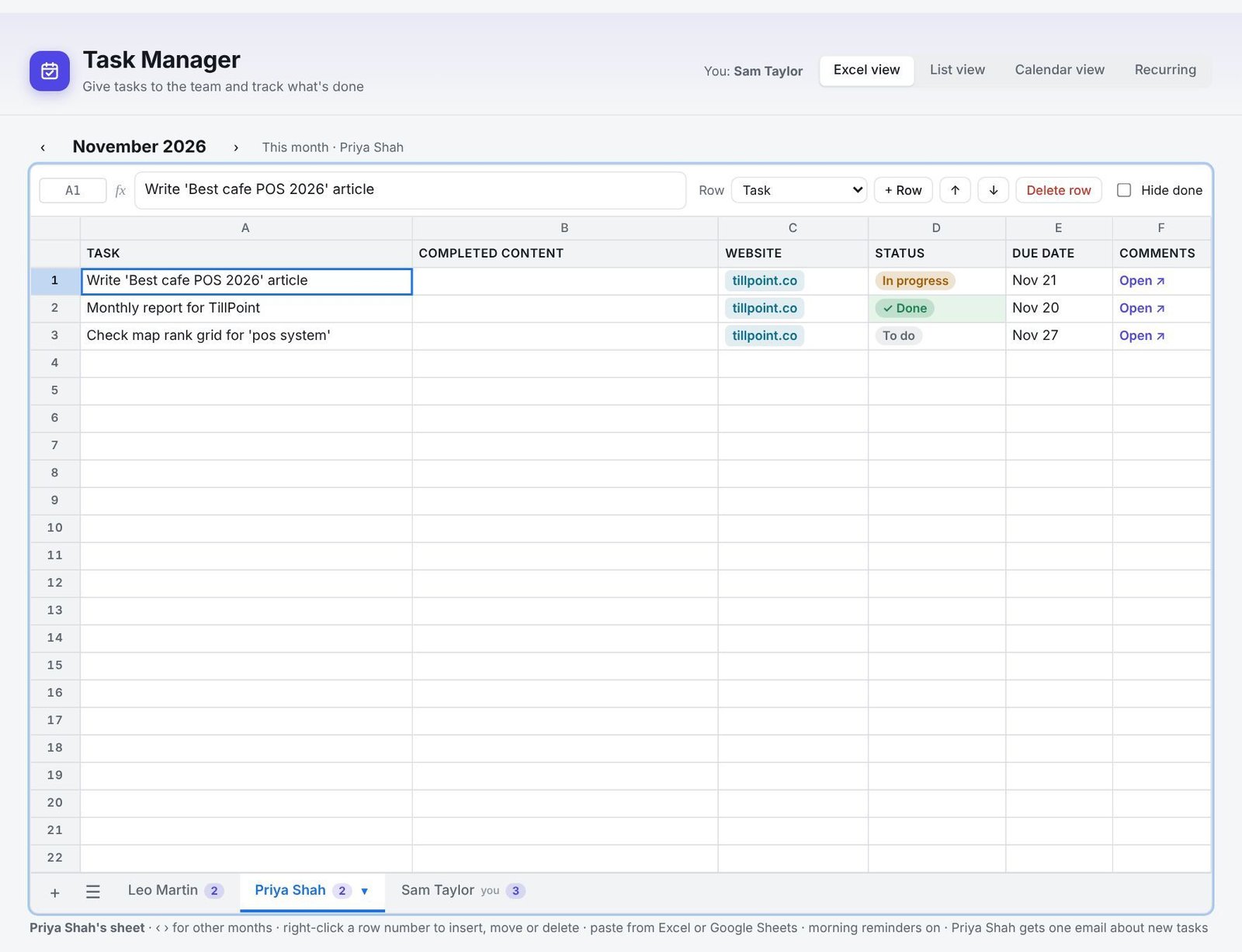
In Excel view, click an empty row on someone’s sheet and type the task, just like a spreadsheet. Or press + Add task in List or Calendar view. Choose the website, status and due date in the row.
-
Open a task for more
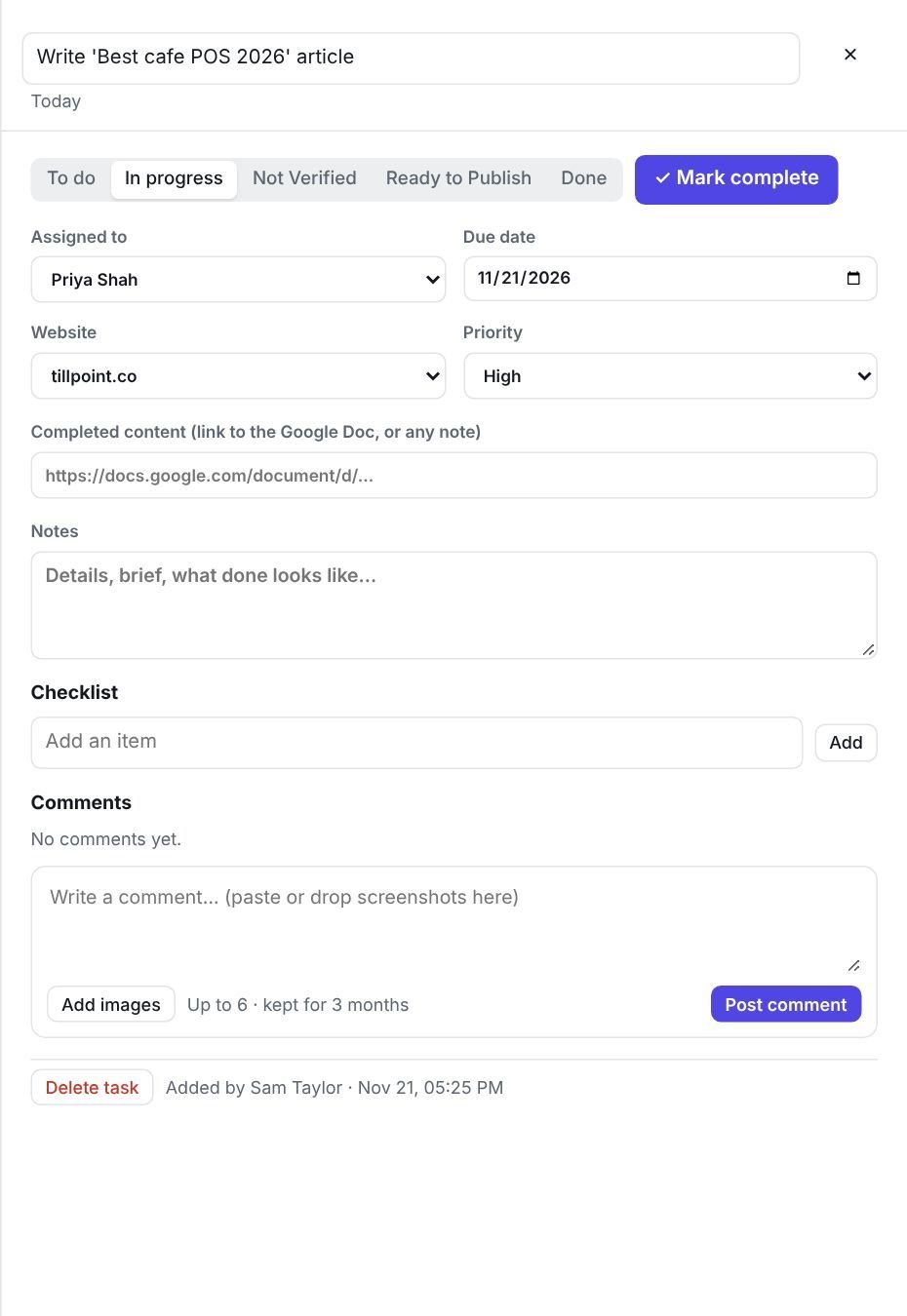
Press Open on a task to set who it’s assigned to, the due date, website and priority, add a link to the finished content, notes and a checklist, and post comments with screenshots.
-
Move it along
Change the status as work progresses: To do, In progress, Not Verified, Ready to Publish and Done. Press Mark complete when it’s finished.
Four views
- Excel view: one sheet per person, with tabs at the bottom. Use the arrows to see other months. Paste rows straight from Excel or Google Sheets.
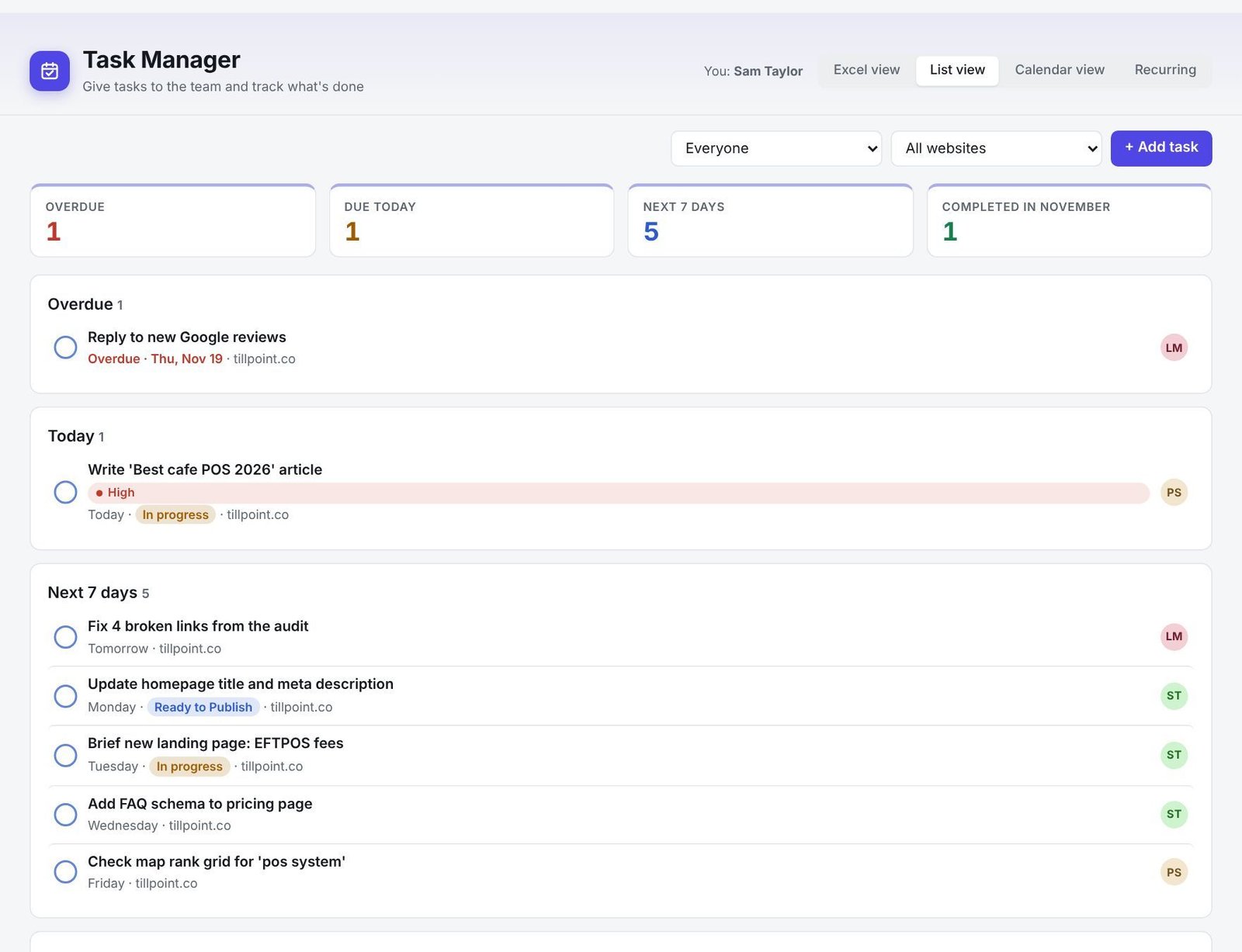
- List view: tasks grouped into Overdue, Today and Next 7 days, with totals at the top.
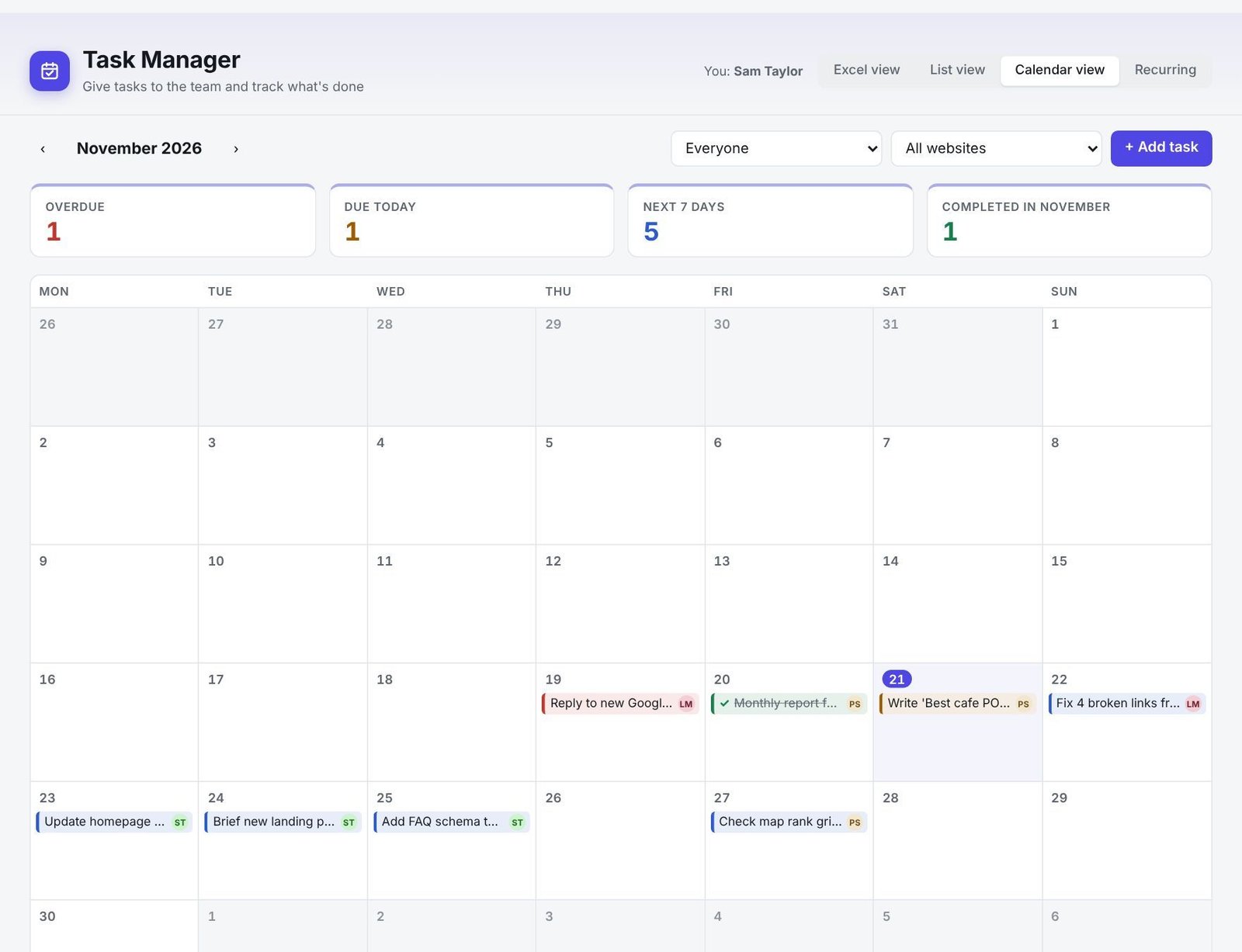
- Calendar view: the month at a glance.
- Recurring: regular work, such as monthly reports. See Recurring work.
Still stuck? Our team is happy to help.
Email support