Connect Google Search Console and Analytics
Connect your Google account once so every website shows its clicks, keywords and visitors.
Rank Thesis reads your Google Search Console and Google Analytics 4 data to show clicks, keywords, visitors and conversions. It only asks for read-only access: it can’t change anything in your Google account.
-
Open Settings
Click Settings at the bottom of the sidebar. Only the workspace’s owner and admins can connect Google.
-
Press Connect Google account
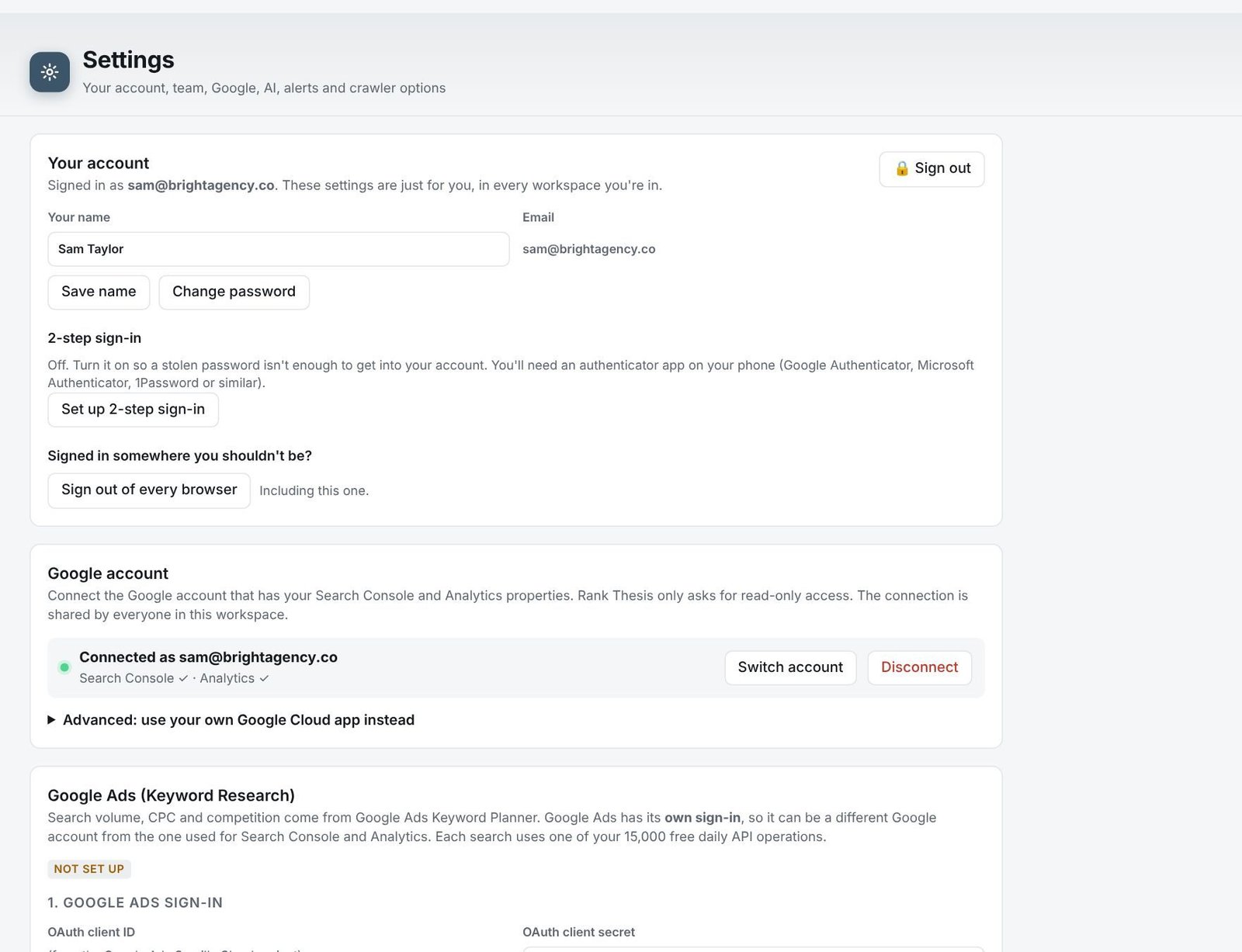
In the Google account card, press Connect Google account. A Google window opens.

-
Choose the Google account and allow access
Pick the Google account that has your Search Console and Analytics properties. Tick every box Google shows, then continue. The window closes by itself.
-
Check it’s connected
The card now says Connected as your email, with a tick for Search Console and Analytics. The sidebar shows the email next to Settings.
Matching each website to its properties
Rank Thesis matches each website to its Search Console property and Analytics property automatically. If it picks the wrong one, or can’t find one, open the website’s Search Console or Analytics page and choose the right property from the Property list at the top.

Switching or disconnecting
In Settings → Google account, press Switch account to use a different Google account, or Disconnect to remove access. You can also remove access from your Google account’s security settings at any time.
Still stuck? Our team is happy to help.
Email support