Keep your account secure
Change your name and password, turn on 2-step sign-in and sign out everywhere.
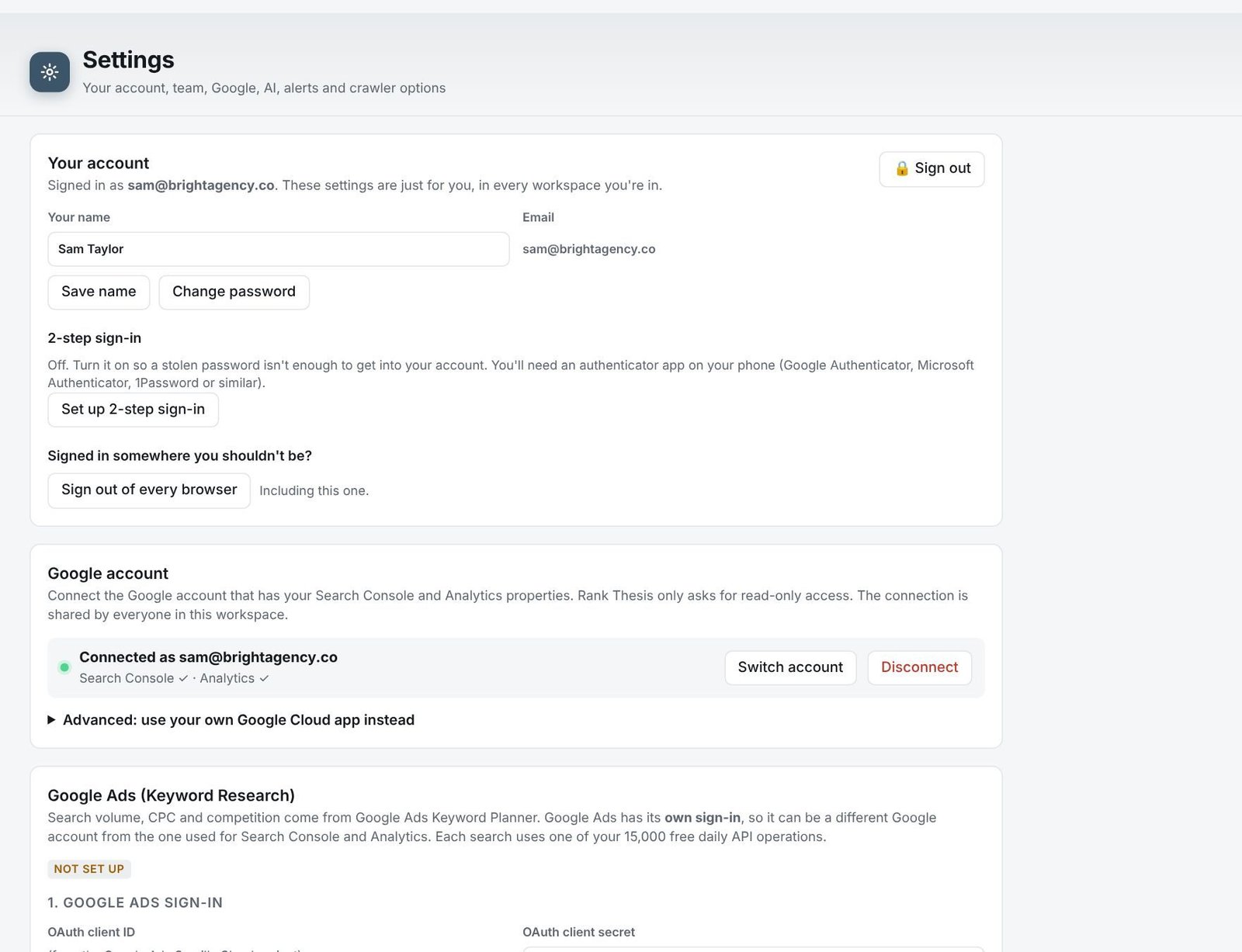
Your account settings are just for you, in every workspace you’re in. Find them in Settings → Your account.
Name and password
Change your name and press Save name. Press Change password to choose a new password; you’ll need your current one.
Turn on 2-step sign-in
2-step sign-in means a stolen password isn’t enough to get into your account. You need an authenticator app on your phone, such as Google Authenticator, Microsoft Authenticator or 1Password.
-
Press Set up 2-step sign-in
In the 2-step sign-in section, press Set up 2-step sign-in.
-
Add the account to your app
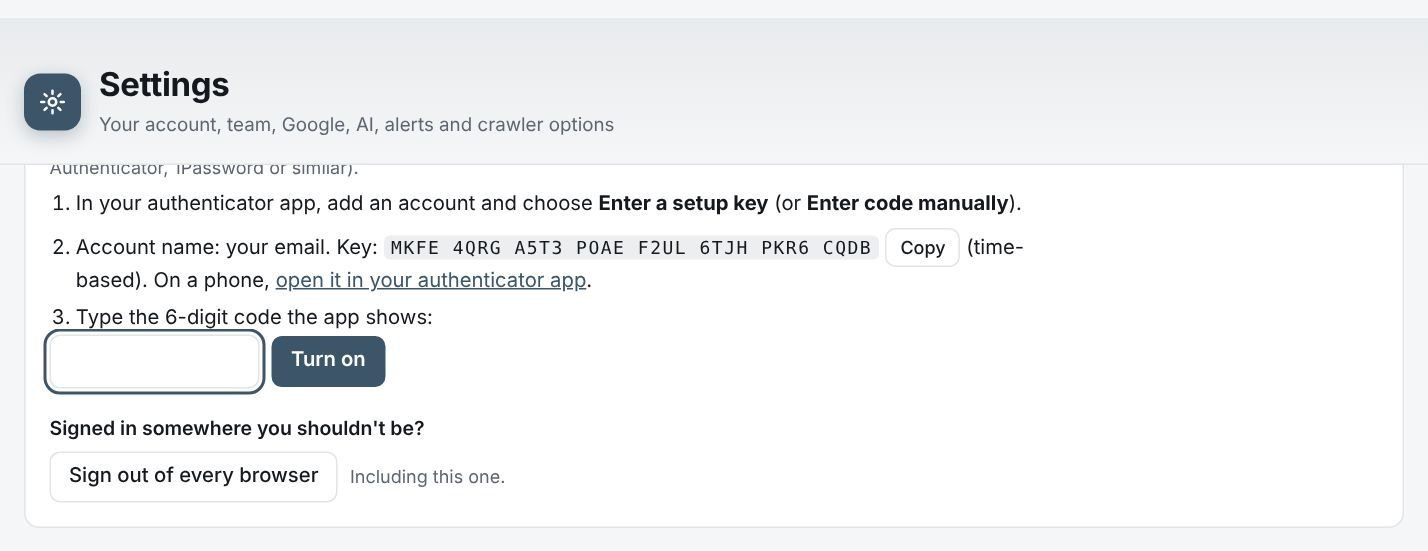
In your authenticator app, add an account and choose Enter a setup key. Type the key shown, or on a phone, tap the link to open your authenticator app.
-
Confirm with a code
Type the 6-digit code your app shows and press Turn on.
-
Save your backup codes
You’re shown backup codes. You get 8 backup codes. Keep them somewhere safe, such as a password manager or printed out. Each one works once if you lose your phone.
From now on, signing in asks for a code from your app.
Signed in somewhere you shouldn’t be?
Press Sign out of every browser to sign out everywhere, including this browser. Then sign in again and change your password.
Still stuck? Our team is happy to help.
Email support